
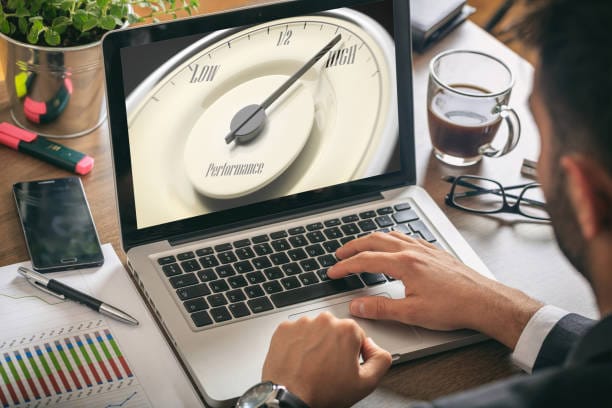
- Install trusted antivirus software: Tools like Malwarebytes, or built-in options such as Windows Defender, can identify and remove threats — including things like unauthorized cryptocurrency miners, which covertly consume significant CPU resources and can be a surprisingly common cause of unexplained slowdowns.
- Browse carefully: Avoiding suspicious sites and using an ad blocker reduces exposure to malware in the first place. Respecting personal privacy — both one’s own and others’ — while browsing is a reasonable baseline habit as well.
It’s worth being aware that aggressive antivirus scans can occasionally flag legitimate files as false positives, so reviewing anything flagged before deleting it is a sensible precaution. Free antivirus tools are generally sufficient for average use, even if paid versions offer somewhat more robust protection.
Advanced Tweaks for Persistent Issues
If performance issues persist after the steps above, a few more advanced options exist — these require more care, since they carry more risk if done incorrectly.
- Optimize virtual memory or paging file settings: On Windows, adjusting the paging file configuration can reduce load on limited RAM. This isn’t a universal fix and can introduce instability if configured incorrectly, so it’s worth adjusting cautiously and only when other options are exhausted.
- Defragment the drive (HDDs only): Rearranging files for faster access is a legitimate performance step on Windows systems with a traditional HDD. Mac systems generally don’t need this due to how their file systems work, and — importantly — SSDs should never be defragmented, since it accelerates wear without providing any speed benefit.
Results from these advanced tweaks vary considerably depending on the laptop’s underlying hardware — an older system with a traditional hard drive tends to see more dramatic improvement than a newer one already using an SSD with integrated graphics.
Conclusion
There’s no single universal fix for slow laptop performance — the right approach depends on the specific cause, and it’s often a process of working through options rather than a single decisive fix. Simple software cleanup tends to deliver the best results for the least effort, and it’s worth starting there before considering hardware upgrades or a full replacement. Laptops typically show meaningful performance decline somewhere in the 3–5 year range, which is a reasonable point to start weighing repair against replacement if problems persist after trying the steps above.
Maintaining a laptop’s performance works much like maintaining a car — regular, small maintenance prevents larger problems down the line. Keeping data backed up and avoiding untrusted downloads matters just as much for long-term laptop health as any single performance fix. When in doubt about a more invasive fix, consulting a professional is a reasonable and often cost-effective precaution.
FAQs
- Why has my laptop suddenly become slow?
Common causes include a recent update, a malfunctioning application, or accumulated temporary files. A restart followed by a full virus scan is a good first diagnostic step. - Will adding more RAM fix a slow laptop?
Usually, yes — particularly for multitasking-heavy use — though the actual improvement depends on current usage patterns and whether the laptop supports a RAM upgrade in the first place. - Are third-party optimization tools safe to use?
Some are trustworthy, particularly well-known antivirus and cleanup tools, but others can cause more problems than they solve. Researching a tool’s reputation before installing it is worth the extra few minutes. - How often should I clean my laptop for better performance?
A physical dust cleaning roughly every six months, combined with lighter software maintenance (clearing temp files, reviewing startup programs) every few weeks, is a reasonable routine. - Can a slow laptop be fixed without buying new hardware?
In most cases, yes — software cleanup, update management, and malware removal resolve the majority of slowdowns without requiring any new hardware.
Related Reading
- How to Speed Up Your Windows PC
- HP Laptop vs MacBook: Which One Should You Buy
- How to Protect Your Computer from Hacking
- Add RAM or upgrade to an SSD: Where upgradeable, adding RAM (for example, going from 8GB to 16GB) makes a substantial difference for multitasking and running more demanding software. Upgrading from an HDD to an SSD is generally an even bigger improvement — SSDs are significantly faster and, with no moving parts, tend to be more reliable over time as well.
- Manage heat and dust buildup: A cooling pad or a routine cleaning of the laptop’s vents can prevent thermal throttling, where a laptop automatically slows itself down to avoid overheating. Dust accumulation inside the chassis is a surprisingly common and easily overlooked cause of gradual performance loss, especially in laptops used heavily for demanding tasks like gaming.
The trade-offs are real: upgrades cost money and can void a warranty if not done carefully, and some laptops — particularly slim ultrabooks with soldered-in components — simply aren’t user-upgradeable at all.
Address Security Threats and Malware
With remote work now common, malware remains a real and ongoing threat to performance, not just security. Running regular scans is worth treating as routine maintenance.
- Install trusted antivirus software: Tools like Malwarebytes, or built-in options such as Windows Defender, can identify and remove threats — including things like unauthorized cryptocurrency miners, which covertly consume significant CPU resources and can be a surprisingly common cause of unexplained slowdowns.
- Browse carefully: Avoiding suspicious sites and using an ad blocker reduces exposure to malware in the first place. Respecting personal privacy — both one’s own and others’ — while browsing is a reasonable baseline habit as well.
It’s worth being aware that aggressive antivirus scans can occasionally flag legitimate files as false positives, so reviewing anything flagged before deleting it is a sensible precaution. Free antivirus tools are generally sufficient for average use, even if paid versions offer somewhat more robust protection.
Advanced Tweaks for Persistent Issues
If performance issues persist after the steps above, a few more advanced options exist — these require more care, since they carry more risk if done incorrectly.
- Optimize virtual memory or paging file settings: On Windows, adjusting the paging file configuration can reduce load on limited RAM. This isn’t a universal fix and can introduce instability if configured incorrectly, so it’s worth adjusting cautiously and only when other options are exhausted.
- Defragment the drive (HDDs only): Rearranging files for faster access is a legitimate performance step on Windows systems with a traditional HDD. Mac systems generally don’t need this due to how their file systems work, and — importantly — SSDs should never be defragmented, since it accelerates wear without providing any speed benefit.
Results from these advanced tweaks vary considerably depending on the laptop’s underlying hardware — an older system with a traditional hard drive tends to see more dramatic improvement than a newer one already using an SSD with integrated graphics.
Conclusion
There’s no single universal fix for slow laptop performance — the right approach depends on the specific cause, and it’s often a process of working through options rather than a single decisive fix. Simple software cleanup tends to deliver the best results for the least effort, and it’s worth starting there before considering hardware upgrades or a full replacement. Laptops typically show meaningful performance decline somewhere in the 3–5 year range, which is a reasonable point to start weighing repair against replacement if problems persist after trying the steps above.
Maintaining a laptop’s performance works much like maintaining a car — regular, small maintenance prevents larger problems down the line. Keeping data backed up and avoiding untrusted downloads matters just as much for long-term laptop health as any single performance fix. When in doubt about a more invasive fix, consulting a professional is a reasonable and often cost-effective precaution.
FAQs
- Why has my laptop suddenly become slow?
Common causes include a recent update, a malfunctioning application, or accumulated temporary files. A restart followed by a full virus scan is a good first diagnostic step. - Will adding more RAM fix a slow laptop?
Usually, yes — particularly for multitasking-heavy use — though the actual improvement depends on current usage patterns and whether the laptop supports a RAM upgrade in the first place. - Are third-party optimization tools safe to use?
Some are trustworthy, particularly well-known antivirus and cleanup tools, but others can cause more problems than they solve. Researching a tool’s reputation before installing it is worth the extra few minutes. - How often should I clean my laptop for better performance?
A physical dust cleaning roughly every six months, combined with lighter software maintenance (clearing temp files, reviewing startup programs) every few weeks, is a reasonable routine. - Can a slow laptop be fixed without buying new hardware?
In most cases, yes — software cleanup, update management, and malware removal resolve the majority of slowdowns without requiring any new hardware.
Related Reading
- How to Speed Up Your Windows PC
- HP Laptop vs MacBook: Which One Should You Buy
- How to Protect Your Computer from Hacking
A laptop that felt fast a year ago gradually slowing down is one of the most common tech frustrations — programs take longer to open, browsers lag with just a few tabs, and video calls stutter unexpectedly. The good news is that slow laptop performance usually has an identifiable cause, and most causes are fixable without replacing the machine.
Slow performance typically comes down to some combination of software bloat, aging hardware, or unwanted background processes. This guide covers practical fixes for slow laptop performance, from quick wins to more advanced tweaks, along with the limitations worth knowing about each approach.
Why Laptops Slow Down Over Time
Understanding the cause makes fixing the problem far more efficient than guessing. Laptops wear down over time much like any other piece of hardware, and the underlying causes generally fall into a few main categories.
Hardware limitations are a common factor. Older laptops often run on aging processors or a traditional hard disk drive (HDD), which is significantly slower than a solid-state drive (SSD) — replacing an HDD with an SSD is one of the single biggest performance upgrades available, often cutting boot times from over a minute down to just a few seconds. Not every laptop is upgradeable, though, and limited RAM (4GB is now genuinely constraining for modern everyday use) can make even simple tasks, like browsing with several tabs open, noticeably sluggish.
Software overload is just as common a culprit. Installing programs, accumulating updates, and letting temporary files pile up over time gradually weighs a system down. Malware is a real factor too — an infected laptop can run dozens of unwanted background processes that quietly consume resources, which is one more reason vigilance around downloads and email attachments matters for performance, not just security.
How to Improve Laptop Performance: Step-by-Step
Start Simple: Clean Up and Restart
A simple restart resolves more performance issues than it gets credit for, clearing out accumulated memory clutter from extended use. If a laptop is still sluggish afterward, a few quick checks are worth doing next.
Checking startup programs through Task Manager (Windows) or Activity Monitor (Mac) often turns up forgotten software quietly launching — and consuming resources — every time the system boots. Disabling anything unnecessary from launching at startup is a quick, low-risk way to reclaim memory and speed up boot time.
Clearing temporary files and cache using built-in tools, such as Disk Cleanup on Windows or Storage Management on macOS, is another simple, low-risk step. Freeing up meaningful amounts of disk space this way often produces a noticeable, immediate improvement in responsiveness — with essentially no downside, as long as it’s the temporary and cache files being cleared, not anything important.
Manage Software and Updates
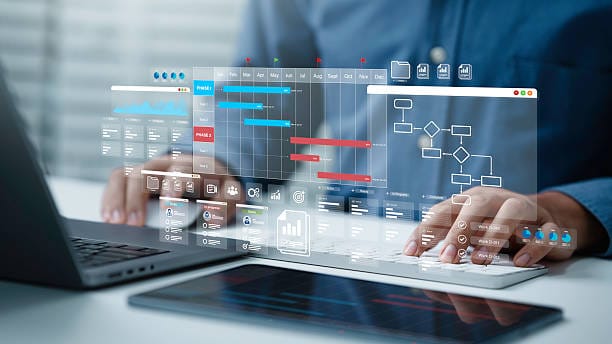
Software bloat is one of the most common slowdowns, and keeping the operating system and drivers updated is the first line of defense against it.
On Windows, updates are managed through Settings > Update & Security; on Mac, through the App Store or System Preferences. Graphics driver updates in particular can resolve specific performance issues, such as stuttering during video playback or editing. It’s worth noting that updates aren’t always risk-free — occasional updates have introduced their own bugs or performance regressions, so it’s reasonable to research a major update briefly before installing it if a system is otherwise running fine.
Uninstalling unused software is another effective step — reviewing installed programs periodically and removing anything no longer needed clears out accumulated clutter. Tools like CCleaner can help identify candidates for removal, though they should be used carefully, since overly aggressive cleanup tools can occasionally remove something still in use. On the security side, avoiding pirated software is worth emphasizing — beyond the legal issues, it’s a common vector for malware that actively degrades performance.
Consider Hardware Upgrades
When software-level fixes aren’t enough, a hardware upgrade may be the next step — though it’s worth approaching carefully, since not every laptop supports it.
- Add RAM or upgrade to an SSD: Where upgradeable, adding RAM (for example, going from 8GB to 16GB) makes a substantial difference for multitasking and running more demanding software. Upgrading from an HDD to an SSD is generally an even bigger improvement — SSDs are significantly faster and, with no moving parts, tend to be more reliable over time as well.
- Manage heat and dust buildup: A cooling pad or a routine cleaning of the laptop’s vents can prevent thermal throttling, where a laptop automatically slows itself down to avoid overheating. Dust accumulation inside the chassis is a surprisingly common and easily overlooked cause of gradual performance loss, especially in laptops used heavily for demanding tasks like gaming.
The trade-offs are real: upgrades cost money and can void a warranty if not done carefully, and some laptops — particularly slim ultrabooks with soldered-in components — simply aren’t user-upgradeable at all.
Address Security Threats and Malware
With remote work now common, malware remains a real and ongoing threat to performance, not just security. Running regular scans is worth treating as routine maintenance.
- Install trusted antivirus software: Tools like Malwarebytes, or built-in options such as Windows Defender, can identify and remove threats — including things like unauthorized cryptocurrency miners, which covertly consume significant CPU resources and can be a surprisingly common cause of unexplained slowdowns.
- Browse carefully: Avoiding suspicious sites and using an ad blocker reduces exposure to malware in the first place. Respecting personal privacy — both one’s own and others’ — while browsing is a reasonable baseline habit as well.
It’s worth being aware that aggressive antivirus scans can occasionally flag legitimate files as false positives, so reviewing anything flagged before deleting it is a sensible precaution. Free antivirus tools are generally sufficient for average use, even if paid versions offer somewhat more robust protection.
Advanced Tweaks for Persistent Issues
If performance issues persist after the steps above, a few more advanced options exist — these require more care, since they carry more risk if done incorrectly.
- Optimize virtual memory or paging file settings: On Windows, adjusting the paging file configuration can reduce load on limited RAM. This isn’t a universal fix and can introduce instability if configured incorrectly, so it’s worth adjusting cautiously and only when other options are exhausted.
- Defragment the drive (HDDs only): Rearranging files for faster access is a legitimate performance step on Windows systems with a traditional HDD. Mac systems generally don’t need this due to how their file systems work, and — importantly — SSDs should never be defragmented, since it accelerates wear without providing any speed benefit.
Results from these advanced tweaks vary considerably depending on the laptop’s underlying hardware — an older system with a traditional hard drive tends to see more dramatic improvement than a newer one already using an SSD with integrated graphics.
Conclusion
There’s no single universal fix for slow laptop performance — the right approach depends on the specific cause, and it’s often a process of working through options rather than a single decisive fix. Simple software cleanup tends to deliver the best results for the least effort, and it’s worth starting there before considering hardware upgrades or a full replacement. Laptops typically show meaningful performance decline somewhere in the 3–5 year range, which is a reasonable point to start weighing repair against replacement if problems persist after trying the steps above.
Maintaining a laptop’s performance works much like maintaining a car — regular, small maintenance prevents larger problems down the line. Keeping data backed up and avoiding untrusted downloads matters just as much for long-term laptop health as any single performance fix. When in doubt about a more invasive fix, consulting a professional is a reasonable and often cost-effective precaution.
FAQs
- Why has my laptop suddenly become slow?
Common causes include a recent update, a malfunctioning application, or accumulated temporary files. A restart followed by a full virus scan is a good first diagnostic step. - Will adding more RAM fix a slow laptop?
Usually, yes — particularly for multitasking-heavy use — though the actual improvement depends on current usage patterns and whether the laptop supports a RAM upgrade in the first place. - Are third-party optimization tools safe to use?
Some are trustworthy, particularly well-known antivirus and cleanup tools, but others can cause more problems than they solve. Researching a tool’s reputation before installing it is worth the extra few minutes. - How often should I clean my laptop for better performance?
A physical dust cleaning roughly every six months, combined with lighter software maintenance (clearing temp files, reviewing startup programs) every few weeks, is a reasonable routine. - Can a slow laptop be fixed without buying new hardware?
In most cases, yes — software cleanup, update management, and malware removal resolve the majority of slowdowns without requiring any new hardware.
Related Reading
- How to Speed Up Your Windows PC
- HP Laptop vs MacBook: Which One Should You Buy
- How to Protect Your Computer from Hacking