

Malware has evolved well beyond the nuisance pop-ups and slow-loading pages of earlier years — modern threats include ransomware that locks files entirely and browser hijackers that make a computer nearly unusable. Removing a virus isn’t a single button press; it takes recognizing the warning signs, using the right tools, and following a methodical process.
This guide walks through how to remove a virus from a computer step by step — covering the warning signs to watch for, the removal process itself, and how to prevent reinfection afterward. For especially severe or persistent infections, particularly ones involving ransomware or financial data, consulting a professional IT security service alongside these steps is a reasonable precaution.
What Is a Computer Virus?

A computer virus is malicious software designed to replicate itself and disrupt normal system operation, typically spreading through email attachments, compromised websites, or suspicious downloads — similar to how a biological virus spreads between hosts. Viruses are one category within the broader term malware, which also includes worms, Trojans, and ransomware, each with slightly different behavior but a shared goal of interfering with normal computer use.
The severity varies widely. Some infections are simply annoying, such as adware flooding a desktop with unwanted ads. Others are genuinely destructive — ransomware, for instance, can encrypt files and demand payment for their release, often starting with subtle symptoms like slow performance or random crashes before escalating.
Malware has become more prevalent alongside the rise of remote work and online shopping, both of which expand the number of ways an infection can reach a device. Cybersecurity firms have reported a steady rise in malware volume in recent years, with ransomware attacks alone costing businesses substantial sums annually — a real financial and operational cost, not just a technical inconvenience.
Signs Your Computer May Have a Virus
Catching an infection early makes removal significantly easier. Some of the most common warning signs include:
- Performance problems: A previously fast computer suddenly runs sluggishly, programs take unusually long to open, or the browser crashes during routine use.
- Unexpected pop-ups: Ads appearing without any action triggering them, especially on otherwise reputable sites, is a common sign of adware or a browser-based infection.
- Unusual behavior: Files disappearing, unfamiliar programs appearing without having been installed, or a browser homepage changing without consent are all red flags worth investigating immediately.
- Security alerts: Antivirus software flagging active threats, or unexplained system file error messages, both warrant a closer look.
Not every glitch is a virus — hardware issues and software conflicts can produce similar symptoms. Cross-checking with a trusted source, such as an antivirus vendor’s official site or a well-moderated community like r/techsupport on Reddit, helps rule out false alarms before assuming the worst. A simple restart resolves many one-off issues; symptoms that persist afterward are a reasonable signal that it’s time to investigate further.
Prevention Is Easier Than Cure
Removing a virus after the fact is always more disruptive than preventing one in the first place — losing even a day of work to an infection is a strong argument for investing a bit of effort upfront.
A reliable antivirus program is the starting point — options like Norton, Bitdefender, or the free tier of Malwarebytes all provide solid baseline protection. Keeping the operating system current matters just as much, whether that’s Windows, macOS, or a Linux distribution like Ubuntu — vendors release security patches specifically to close vulnerabilities that malware actively exploits.
A few additional habits round out a solid defense: enabling a firewall, turning on two-factor authentication for important accounts, and being cautious with email attachments or downloads from unfamiliar senders. Phishing campaigns often piggyback on current events — health-related scares and urgent-sounding alerts have historically been common phishing themes — which makes verifying a sender before clicking anything a habit worth maintaining consistently.
No prevention strategy is completely foolproof — even strong technical defenses can be undermined by a single well-crafted phishing attempt. Sticking to legitimate, licensed software rather than pirated or “cracked” tools is also worth emphasizing, since cracked software is a common vector for malware — using it doesn’t just risk one system, it can spread infections to others as well.
How to Remove a Virus from Your Computer: Step-by-Step
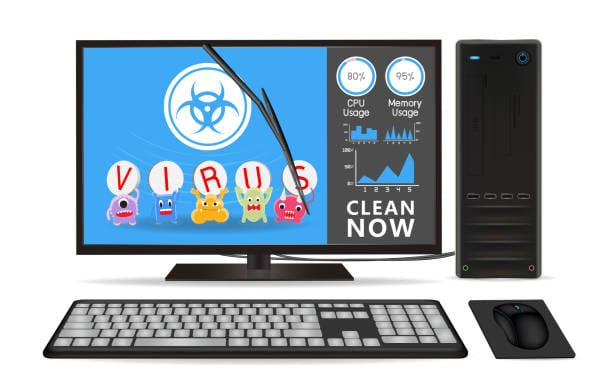
Virus removal isn’t one-size-fits-all, but the following process covers most common infections effectively.
Step 1: Isolate the Device and Assess the Damage
Disconnect the device from the internet first, to prevent the malware from spreading further or communicating with an external server. If the device is on a shared network, warn other users before proceeding. Run a scan using whatever antivirus is already installed — Windows Defender is a solid starting point on Windows and has improved substantially in recent versions.
For a serious infection, booting into Safe Mode is worth doing before scanning — on Windows, this means holding Shift while restarting and selecting Safe Mode from the recovery menu; on Mac, holding Shift during startup until the login screen appears. Safe Mode loads only essential drivers and services, which makes it easier to isolate and remove malicious processes that might otherwise hide among normal running programs.
Step 2: Run a Full Scan with Trusted Antivirus Software
This is where dedicated removal tools do most of the work. Install a reputable antivirus tool and run a full system scan rather than a quick scan. Malwarebytes is a widely used option for this specific purpose, known for effectively handling adware and browser hijackers with a straightforward interface.
If the installed antivirus itself seems compromised or unreliable, offline scanning tools — such as the ESET Online Scanner or a bootable rescue disk like Kaspersky’s — can detect threats that standard software running on an infected system might miss. As with any security tool, downloading only from the official vendor site is essential to avoid introducing further infections.
Mac users aren’t immune to malware, though infections are less common than on Windows. Tools like CleanMyMac, along with macOS’s built-in XProtect, help address most Mac-specific threats; in some cases, resetting NVRAM can also resolve persistent system-level issues.
Step 3: Manual Removal for Stubborn Infections
Automated tools sometimes aren’t enough, particularly against persistent rootkits. Manual removal requires more care, since incorrect changes at this level can cause serious system problems.
Checking Task Manager (Ctrl+Shift+Esc on Windows) for unfamiliar processes is a good starting point — a process consuming unusually high CPU with an unrecognized name is worth researching online before deciding whether to end it. Checking the Startup tab in Task Manager for unfamiliar entries and removing anything suspicious is another common step in eliminating a persistent infection.
Editing the Windows registry directly is a more advanced step and carries real risk if done incorrectly — it should only be attempted with a full backup already in place. Utilities like CCleaner can help clear temporary files as part of cleanup, though they’re a supporting tool rather than a complete removal solution on their own.
Step 4: Restore and Recover
Once the infection is confirmed removed, restoring from a clean backup — where one exists — is the most reliable way to fully recover. This is exactly why maintaining regular backups to an external drive or a cloud service, such as Google Drive, matters well beyond just guarding against accidental deletion. Without a backup, rolling back to an earlier system state using System Restore on Windows or Time Machine on Mac is the next best option.
After removal, updating all software and running one more full scan confirms the system is genuinely clean. It’s also worth reinforcing defenses going forward — using a sandboxed environment, such as Windows Sandbox, to test uncertain downloads before running them on the main system is a good habit to build in afterward.
It’s worth being realistic about limitations: not every virus can be removed without some data loss, and particularly severe cases may genuinely require professional help from a service like Geek Squad or a dedicated IT technician. Ethically, avoiding sharing infected files or using shared/public computers until a device is confirmed clean helps prevent an infection from spreading further.
A Common Scenario: Adware and a Bundled Trojan
A fairly typical case looks something like this: a computer starts running slowly and generating unexpected pop-ups, traced back to adware bundled with a pirated software download, along with a Trojan riding alongside it. Quarantining the device, running a full Malwarebytes scan, and manually removing a few remaining files usually resolves a case like this within about an hour — though the disruption to a workday, and the underlying lesson about downloading only from trusted sources, tends to outlast the technical fix itself.
Conclusion
Removing a virus from a computer is very achievable with the right process, even if it isn’t always fast or simple. Malware threats continue to evolve, so keeping current with reliable sources, such as CNET or Wired, is a reasonable ongoing habit. This guide covers general best practices, but especially severe or unusual cases may call for a solution specific to that situation. Protecting personal data throughout the process, and being mindful of privacy considerations when handling any sensitive information involved, matters just as much as the technical cleanup itself.
Ultimately, prevention remains the strongest defense — staying alert to warning signs and maintaining good security habits means spending far less time removing infections and more time actually using the technology as intended.
Frequently Asked Questions
Q1: How long does it take to remove a virus?
A: A straightforward removal can take 15–30 minutes; a more complex infection may take several hours, or longer if professional help is needed.
Q2: Can a virus be removed without antivirus software?
A: It’s possible through manual removal, but it’s considerably riskier and generally not recommended for anyone without solid technical experience.
Q3: Is my data safe after removing a virus?
A: Not necessarily — not every virus deletes or damages data, but it’s worth checking for signs of a breach afterward and updating passwords for any accounts that may have been exposed.
Q4: What if the virus keeps coming back?
A: Recurring infections often point to an external reinfection source, such as an infected external drive. In persistent cases, a full system wipe and clean reinstall may be the most reliable last resort.
Q5: Should I pay a ransomware ransom?
A: No — security professionals generally advise against it. Payment doesn’t guarantee file recovery and directly funds further criminal activity. Reporting the incident to relevant authorities is the recommended path instead.
Q6: How can I protect my computer from future viruses?
A: Keep antivirus software updated, avoid clicking unfamiliar or suspicious links, and keep the operating system and installed software current — these three habits provide the most reliable long-term protection.
Q7: Are Mac or Linux computers less likely to get viruses?
A: Generally yes, due to differences in market share and built-in security architecture, but neither is immune. Safe browsing habits matter regardless of operating system.
Related Reading
- How to Protect Your Computer from Hacking
- How to Speed Up Your Windows PC
- How to Recover Deleted Files